Sunday, July 3, 2016

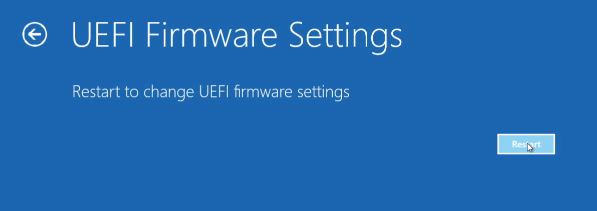
Windows 10 BIOS Setup To Enable Virtual Setting & Virtual Box Installation

To be able to install UBUNTU Linux OS or any other 64 bit operating systems in Virtual Box which installed in Windows10 , follow the below steps.

By default Virtual Box in Windows10 give only option to install 32 bit operating systems.


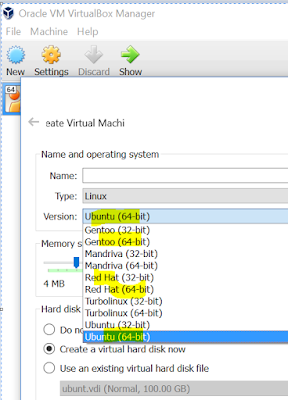

We are now ready to install Virtual Box.

Download Virtual Box VirtualBox-5.0.22-108108-Win.exe using following URL

http://www.oracle.com/technetwork/server-storage/virtualbox/downloads/index.html

After the download, follow the steps mentioned in below URL to be able to install Virtual Box and required OS of your choice.

https://opensourcedbms.com/dbms/installing-cent-os-6-3-linux-in-oracle-virtual-box-ssh-access/


Friday, June 24, 2016

Copying Tables from Oracle to Netezza using Alteryx

Follow below steps to be able to create table along with its data from Oracle to Netezza.

Suppose we have employees table at Oracle database


Connect to Alteryx, use "Input Data" tool to read the employee table of Oracle
Fill the username, password, tns info to connect to your Oracle DB.

Test the connection, SQL.


Use "Output Data" tool in Alteryx and to connect to Netezza to create the table


Workflow looks as follows
output of workflow

@Netezza Side


Netezza Stored Procedure Sample

Below is the Sample code of Netezza

Create sample Table 

create table temp1 (col1 int);


create or replace procedure test_proc()
   returns character varying(any)
   language nzplsql as
begin_proc
begin
   insert into temp1 values (1);
   raise notice 'rows impacted-, %', row_count; -- To print messages to console
exception
   when others then
   raise exception 'Exception while running test_proc. Error Message is %', sqlerrm; -- To print error messages to console
end;
end_proc;


Testing


EXECUTE TEST_PROC();


Thursday, June 23, 2016

Comparing Table Data Between Oracle, Netezza (Two different Source Systems) using Alteryx

Suppose , we have a employee table exists at Oracle database as well as Netezza database.

Now, we wanted to compare the table data at these two sources.
We wanted to see,

  1. What are the records exists only @Oracle
  2. What are the records exists only @Netezza
  3. What are all the records exists in both Oracle, Netezza

Create a Alteryx workflow as follows

Use "Input Data" tool to read the data from employee table @Oracle
Use another "Input Data" tool to read the data from employee table @Netezza

Use "Joiner" tool to join the two sources

Use "Browse" tool to see the results


Export Table Data From Database into Multiple Excel Files Using Alteryx

For this exercise  you need Oracle or any other database and Alteryx tool.

Get Alteryx from here -> http://www.alteryx.com/

Design the workflow as follows

In the 1st step, we are going to use "Input Data" tool to connect to Database and to read the data from table.

Create sample employee table using following sql

create table employees as 
    select level empno,
           'name' || level ename,
           case
              when level <= 10 then 10
              when level between 11 and 20 then 20
              when level between 21 and 30 then 30
              when level between 31 and 40 then 40
              when level between 41 and 50 then 50
           end
              deprt_id
      from dual
connect by level <= 50


In Step-2, use Alteryx "Formula" tool to name the files dynamically

In Step-3, use "Output Data" to write the files.


Saturday, June 18, 2016

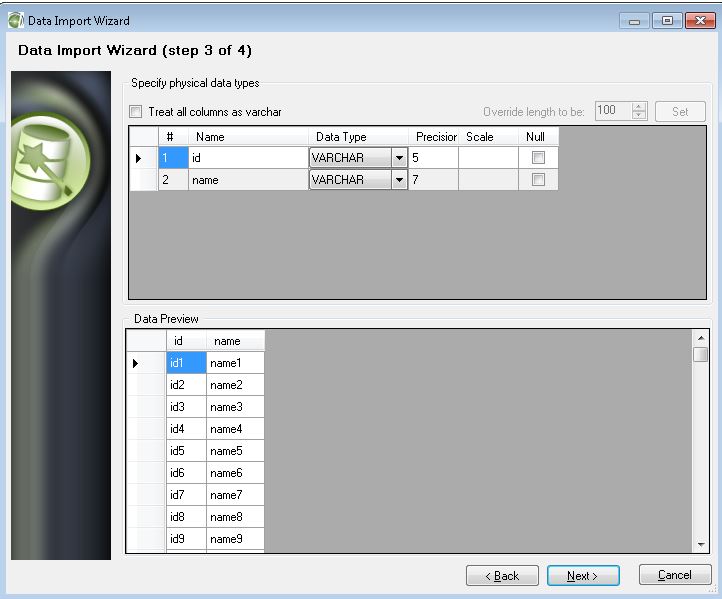
Excel File Data Load Into Netezza Table

Follow below steps to loa excel file into new table. These steps will create new table into Netezza table by loading data in the given excel file.


Sample File Data


PostGre SQL Installation steps Windows

Download software from below URL


Follow the below steps to install Postgre


After the installation, you see the folders as follows


Connecting to the postgre database